
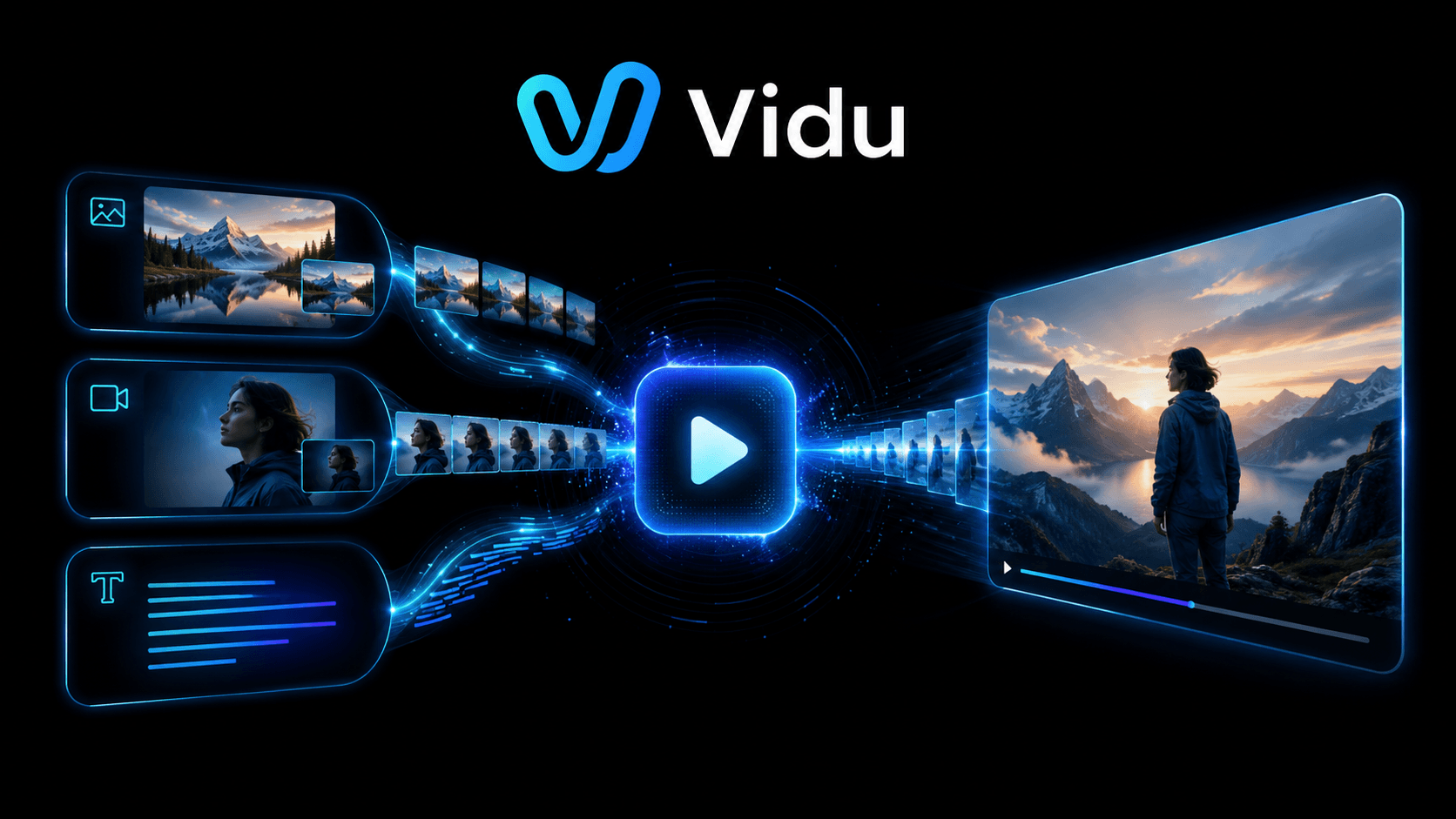
Vidu AI Video Generator: Full Tutorial & Review (Text-to-Video, Image-to-Video & Reference-to-Video)
Creating cinematic AI videos used to require expensive software, a steep learning curve, or a hefty subscription. Vidu stands out because of its Reference-to-Video feature, templates, free-tier access, and built-in sound effects. These features make it useful for creators who want consistent characters, quick social videos, and complete short clips. With a browser-based interface, a genuinely usable free tier, and a feature set that rivals paid tools like Runway and Kling, Vidu fits users who want a balance of ease, consistency, templates, and short-form video creation. Vidu has become one of the most talked-about AI video generators for creators in 2025. Platforms like Tokenware can help developers explore and access different AI models from one place, especially when a project needs text, image, video, or audio features in the same workflow.
Let’s walk you through everything: setting up your account, understanding the Q1 and Q2 models, crafting prompts that actually work, animating images, maintaining character consistency with Reference-to-Video, adding AI sound effects, and using viral templates for quick social wins
What Is Vidu AI?

Vidu AI is an AI video generation tool that lets users create videos from prompts, images, and reference materials. You can access it from the web, and it also has mobile apps for iOS and Android.
The platform is built for users who want to generate short AI videos quickly. Instead of filming, animating, or editing manually, users describe a scene, upload an image, or choose a template, then Vidu generates the clip.
Vidu AI is useful for:
- YouTube Shorts
- TikTok videos
- Instagram Reels
- Product videos
- AI character videos
- Concept visuals
- Social media experiments
- Short cinematic clips
Key Vidu AI Features
Vidu AI has several video creation features, but these are the most important ones.
Text-to-Video
Text-to-video lets you turn a written prompt into a video. You describe the subject, scene, style, and camera movement, then Vidu generates a short clip.
Example prompt: A lone samurai stands in a bamboo forest at dawn, mist rising, slow dolly forward, cinematic, soft golden light.
This feature is best for users who want to create scenes from scratch.
Image-to-Video
Image-to-video lets you upload a still image and animate it. This is useful for portraits, product photos, landscapes, AI-generated images, and character illustrations.
For example, you can upload a product image and ask Vidu to add a slow camera zoom, soft lighting, or subtle product rotation. This feature works best when the uploaded image is clear and high quality.
Reference-to-Video
Reference-to-Video helps users maintain character or subject consistency across video clips. This is one of Vidu’s strongest features because character consistency is a common problem in AI video generation.
Users can upload reference images of a subject, character, product, or object. Vidu then uses those references to keep the appearance more stable in the generated video.
This is useful for:
- AI character videos
- Brand mascots
- Product videos
- Animated series
- Social content with recurring subjects
Templates
Vidu also includes templates for users who want quick results. Templates apply pre-built effects or motion styles to uploaded images. They are useful for social media creators who want fast, trend-style outputs without writing detailed prompts.
Common template use cases include:
- Hug effects
- Transformations
- Anime-style loops
- Product spins
- Viral social video formats
AI Sound Effects
Vidu includes AI sound effects that can add atmosphere to generated videos. After generating a clip, users can add sounds like rain, city noise, wind, thunder, footsteps, or background ambience. This helps make clips feel more complete without using a separate sound library or audio editor.
How to Use Vidu AI
Getting started with Vidu AI is simple.
- Go to
vidu.com. - Sign up with your email, Google account, or Apple account.
- Open the dashboard.
- Choose the mode you want to use, such as Text-to-Video or Image-to-Video.
- Enter your prompt or upload an image.
- Select your model and generation settings.
- Generate the video.
- Preview, download, or add sound effects.
How to Write Better Vidu AI Prompts
 The best Vidu prompts are clear and visual. A strong prompt should include:
- Subject
- Scene
- Action
- Camera movement
- Style
- Lighting
Use this structure:
Subject + Scene + Motion + Camera Direction + Style
Example:
A golden retriever runs across a beach at sunset, slow motion, wide shot, warm cinematic lighting.
Camera movement can improve the final video. Try terms like:
- Slow zoom in
- Dolly forward
- Camera arcs around the subject
- Drone shot
- Handheld camera
- Tilt up
- Wide shot
- Close-up
Avoid vague prompts like:
A man walking.
Use a clearer version:
A tired office worker walks through an empty parking garage at midnight, handheld camera, low light, cinematic mood.
Vidu Q1 vs Vidu Q2
Vidu has different model options, including Q1 and Q2.
Vidu Q1 works well for general AI video generation. It supports smooth motion, 1080p output, and AI sound effects.
Vidu Q2 improves consistency, especially for character-driven videos and Reference-to-Video tasks. For most users, Q2 is the better choice when the subject needs to stay visually consistent.
| Model | Best For |
|---|---|
| Vidu Q1 | General video generation |
| Vidu Q2 | Character consistency, Reference-to-Video, stronger scene control |
If you are creating simple clips, Q1 can work well. If you are creating recurring characters, brand mascots, or story-based videos, use Q2.
Vidu AI Free vs Paid Plans
Vidu offers a free plan with monthly credits. This lets new users test the platform before upgrading.
The free plan is useful for light testing, short clips, and learning how the platform works. Paid plans usually offer more credits, longer clips, faster generation, and higher priority access.
Before choosing a paid plan, check:
- Monthly credit amount
- Clip duration
- Watermark rules
- Export quality
- Generation speed
- Commercial use terms
- Credit reset period
Start with the free plan if you are still testing prompts, templates, or image-to-video outputs.
Vidu AI vs Other AI Video Generators
Vidu competes with tools like Runway, Kling, and Pika. Each tool has its own strengths.
Vidu stands out because of its Reference-to-Video feature, templates, free-tier access, and built-in sound effects. These features make it useful for creators who want consistent characters, quick social videos, and complete short clips.
Runway is strong for cinematic video generation. Kling is known for realistic motion. Pika is useful for fast creative clips. Vidu fits users who want a balance of ease, consistency, templates, and short-form video creation.
For teams building wider AI video or creative workflows, Vidu can also sit alongside other models and tools. Platforms like Tokenware can help developers explore and access different AI models from one place, especially when a project needs text, image, video, or audio features in the same workflow.
Best Use Cases for Vidu AI
Social Media Videos
Creators can use templates, image animation, and short prompts to create TikTok, Reels, and Shorts content.
Product Videos
Brands can upload product images and animate them with slow zooms, spins, lighting effects, or clean showcase motion.
AI Character Videos
Reference-to-Video helps keep characters more consistent across clips, which is useful for stories, skits, and mascot content.
Concept Videos
Designers and marketers can use Vidu to turn campaign ideas or visual concepts into short motion previews.
Cinematic Clips
Users can write prompts with camera directions, lighting, and scene descriptions to create short cinematic outputs.
Common Mistakes to Avoid
- Avoid vague prompts. Clear subject, scene, style, and camera direction improve results.
- Do not use low-quality images. Blurry uploads often lead to weak video output.
- Avoid asking for too much motion at once. Start with simple movement, then test more complex actions.
- Do not skip sound effects. Adding audio can make a short clip feel more polished.
- Do not spend credits without a goal. Decide the mood, motion, and use case before generating.
When Tokenware is Good for Usage
Vidu AI is useful for creators who want to generate videos from prompts, images, and reference materials. But some teams may need more than one AI video tool or model.
A product team may want one model for text-to-video, another for image-to-video, another for image generation, and another for voiceovers or captions. This is where a unified model platform like Tokenware becomes useful.
Tokenware helps developers explore and access multiple AI models through one API layer. This makes it useful for teams that want to test different AI models, compare outputs, and build multi-model workflows without setting up every provider separately.
For example, a team can use one model to generate product images, another to animate those images, another to write captions, and another to create voiceovers. That kind of workflow is easier to plan when model access sits in one place.
Final Thoughts
Vidu AI is a useful AI video generator for creators, marketers, and teams that want to create short videos from prompts, images, and references.
Its strongest features are text-to-video, image-to-video, Reference-to-Video, templates, and AI sound effects. The free plan makes it easy to test, while the paid plans give more room for users creating videos regularly.
For simple social clips, product videos, and character-based AI content, Vidu is worth trying. For teams building larger AI workflows with multiple models, Tokenware can help connect video generation with other AI tasks like image generation, captions, text output, and voice features.
FAQs About Vidu AI
- Is Vidu AI free to use?
Vidu AI offers a free plan with monthly credits. The free plan is useful for testing the tool, creating short clips, and learning how the platform works.
- What is Vidu AI best used for?
Vidu AI is best used for short AI videos, social media clips, product animations, image-to-video content, and character-based videos.
- What is Reference-to-Video in Vidu AI?
Reference-to-Video lets users upload reference images of a character, product, or subject. Vidu uses those references to keep the subject more consistent in the generated video.
- Which is better, Vidu Q1 or Vidu Q2?
Vidu Q2 is usually better for character consistency and Reference-to-Video. Vidu Q1 still works well for general text-to-video and image-to-video generation.
- Can Vidu AI animate product images?
Yes. You can upload product images and add motion prompts like slow rotation, camera zoom, or soft studio lighting.
- Does Vidu AI support sound effects?
Yes. Vidu includes AI sound effects, so users can add ambience or motion-related sound after generating a video.
- Can I use Vidu AI for TikTok and Instagram videos?
Yes. Vidu is useful for TikTok, Instagram Reels, YouTube Shorts, and other short-form content formats.
- Does Vidu AI require video editing skills?
No. Vidu works through prompts, image uploads, and templates, so users do not need advanced video editing experience.
- Can developers access Vidu AI through an API?
Users should check Vidu’s official website or documentation for current API access details. If a team needs broader multi-model access, Tokenware can help developers explore different AI models from one platform.
- What makes Vidu AI different from other AI video tools?
Vidu stands out for Reference-to-Video, templates, image-to-video generation, and built-in sound effects. It is especially useful for creators who want short videos with less manual editing.